What SYNC version do I have in my Lincoln vehicle?
You can find your SYNC®* software version with your in-vehicle SYNC screen using the instructions in this article.
Locating your vehicle's SYNC software version can help determine the correct troubleshooting steps to follow or verify if a SYNC update is available.
Finding Your Vehicle's Software Version with SYNC
Important: Ensure your vehicle is running and in Park (P) in an open, well-ventilated, and safe area.
Select your SYNC generation from the drop-down options below to learn how to locate your SYNC software version using your vehicle's SYNC screen. If you need assistance determining the generation of your SYNC system, select the first drop-down option.
Note: Actual screens may vary. See your Owner’s Manual for information specific to your vehicle.
Identifying Your Lincoln's SYNC Generation
Select a resource in the table below to help you identify your vehicle's SYNC generation.
| Resources | Instructions |
| The SYNC and Navigation Updates page | Either:
Your SYNC generation will appear on the right side of the page. |
| The SYNC Visual Reference Guide | Select the link to view example images of SYNC generations that Lincoln has offered. |
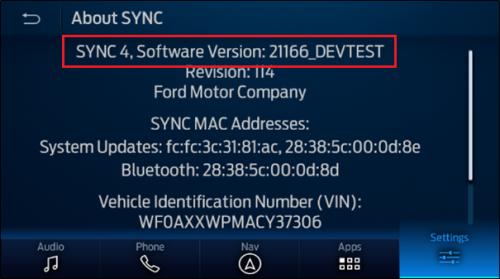
SYNC 4
- Select Settings on your vehicle's SYNC screen.
- Press General.
- Tap About SYNC.
Your SYNC version will be displayed on the screen.
SYNC 3
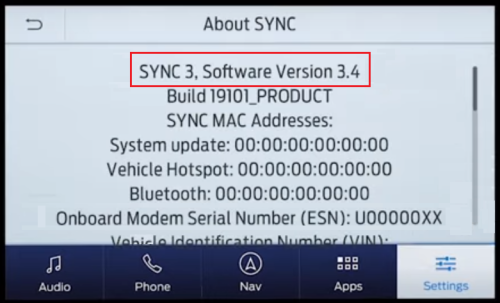
- Select Settings from your vehicle's SYNC screen.
- Press General.
- Tap About SYNC.
Your SYNC version will be displayed on the screen.
SYNC with MyLincoln Touch
- Press Settings (Gear icon).
- Select Help.
- Select System Information.
- Look for the number after "CCPU S/W Version."
- Use the table below to match the CCPU number with the SYNC software version.
| SYNC with MyLincoln Touch | |
|---|---|
| Software Version | CCPU version in vehicle |
| 1.8 | 10212 |
| 2.3 | 10308 |
| 2.4 | 10337 |
| 2.7 | 11038 |
| 2.8 | 11063 |
| 2.10 | 11081 |
| 2.11 | 11134 |
| 3.0.2 | 12023 |
| 3.1.3 | 12058 |
| 3.2.2 | 12156 |
| 3.5.1 | 12285 |
| 3.6.2 | 13171 |
| 3.7.11 | 14073 |
| 3.7 | 14122 |
| 3.8 | 15128 |
| 3.10 | 16180 |
SYNC with Voice-Activated Navigation
- Tap the Phone button.
- Press Settings. You may have to do this twice depending on if a phone is connected or not.
- Select Advanced.
- Tap the down arrow twice.
- Press System Information.
- Use the table below to match the CIP/FPN number with your SYNC software version.
| SYNC with Voice-Activated Navigation | |
|---|---|
| Software Version | CIP/FPN |
| V1.01 | 8L2T-14D544-AD |
| V1.02 | 8L2T-14D544-AE |
| V1.1 | 9L3T-14D544-AC |
| V1.2 | 9L3T-14D544-AD |
| V1.3 | 9L3T-14D544-AE |
| V2 | 9L2T-14D544-BC |
| V2.01 | 9L2T-14D544-BD |
| V2.1 | 9L2T-14D544-BE |
| V3 | AR3T-14D544-AC |
| V3.01 | AR3T-14D544-AD |
| V3.1 | AR3T-14D544-AE |
| V3.1.1 | CM5T-14D544-AC |
| V3.1.4 | CM5T-14D544-AD |
| V3.1.6 | CM5T-14D544-AE |
| V3.2 | BG1T-14D544-AB |
| V3.2.2.2 | BG1T-14D544-AD |
| V3.2.4 | BG1T-14D544-AG |
| V3.2.5 | BG1T-14D544-AH |
| V3.2.6 | BG1T-14D544-AJ |
| V4.0 | CR3T-14D544-AB |
| V4.0.2 | CR3T-14D544-AC |
| V4.1.2 | DG1T-14D544-AC |
| V4.1.3 | DR3T-14D544-AD |
| V4.1.4 | DL3T-14D544-AB |
| V4.2.1 | DG1T-14D544-AE |
| V4.2.1.4 | DR3T-14D544-AE |
| V4.3 | EJ5T-14D544-AA |
| V4.4 | FJ5T-14D544-AA |
| V4.4 | FJ5T-14D544-AB |
| V4.4 | DE8T-14D544-AC |
| V4.4 | CM5T-14D544-AF |
| V4.4 | DR3T-14D544-AF |
| V4.4 | DL3T-14D544-AE |
| V4.6 | Varies depending on vehicle and region |
| V4.8 | Varies depending on vehicle and region |
SYNC with P Version Navigation
- Ensure your phone is connected.
- Press the Phone button.
- Select Settings.
- Choose Advanced.
- Tap the down arrow twice and press System Information.
- Use the table below to match the CIP/FPN number with their SYNC software version.
| SYNC with Voice-Activated Navigation | |
|---|---|
| Software Version | CIP/FPN |
| V1.01 | 8L2T-14D544-AD |
| V1.02 | 8L2T-14D544-AE |
| V1.1 | 9L3T-14D544-AC |
| V1.2 | 9L3T-14D544-AD |
| V1.3 | 9L3T-14D544-AE |
| V2 | 9L2T-14D544-BC |
| V2.01 | 9L2T-14D544-BD |
| V2.1 | 9L2T-14D544-BE |
| V3 | AR3T-14D544-AC |
| V3.01 | AR3T-14D544-AD |
| V3.1 | AR3T-14D544-AE |
| V3.1.1 | CM5T-14D544-AC |
| V3.1.4 | CM5T-14D544-AD |
| V3.1.6 | CM5T-14D544-AE |
| V3.2 | BG1T-14D544-AB |
| V3.2.2.2 | BG1T-14D544-AD |
| V3.2.4 | BG1T-14D544-AG |
| V3.2.5 | BG1T-14D544-AH |
| V3.2.6 | BG1T-14D544-AJ |
| V4.0 | CR3T-14D544-AB |
| V4.0.2 | CR3T-14D544-AC |
| V4.1.2 | DG1T-14D544-AC |
| V4.1.3 | DR3T-14D544-AD |
| V4.1.4 | DL3T-14D544-AB |
| V4.2.1 | DG1T-14D544-AE |
| V4.2.1.4 | DR3T-14D544-AE |
| V4.3 | EJ5T-14D544-AA |
| V4.4 | FJ5T-14D544-AA |
| V4.4 | FJ5T-14D544-AB |
| V4.4 | DE8T-14D544-AC |
| V4.4 | CM5T-14D544-AF |
| V4.4 | DR3T-14D544-AF |
| V4.4 | DL3T-14D544-AE |
| V4.6 | Varies depending on vehicle and region |
| V4.8 | Varies depending on vehicle and region |
SYNC Gen 1.1
- Select the Menu button.
- Scroll to "SYNC Settings", then press OK.
- Scroll to "System info", then select OK.
- Scroll to "FPN number".
- Use the table below to match the FPN number with your SYNC software version.
| SYNC Gen 1.1 | |
|---|---|
| Software Version | FPN |
| V5.5 | FR3T-14D544-AG |
| V5.5 | EV6T-14D544-AG |
| V5.6 | E1BT-14D544-AH |
| V5.6 | FR3T-14D544-AH |
| V5.6 | EV6T-14D544-AH |
| V5.7 | E1BT-14D544-AJ |
| V5.7 | FR3T-14D544-AJ |
| V5.7 | EV6T-14D544-AJ |
| V5.8 | E1BT-14D544-AK |
| V5.8 | FR3T-14D544-AK |
| V5.8 | EV6T-14D544-AK |
| V5.9 | Varies depending on vehicle and region |
| V5.11 | Varies depending on vehicle and region |
SYNC Gen 1
- Press the AUX button until the screen displays "Line In".
- Select Menu.
- Scroll to "System Settings", then tap OK.
- Scroll to "Advanced", then select OK.
- Scroll to "System Info", then press OK.
- Scroll to "FPN number", then tap OK. You may have to press the text button if the number is cut off.
- Use the table below to match the FPN number with your SYNC software version.
| SYNC Gen 1 | |
|---|---|
| Software Version | CIP/FPN |
| V1.01 | 8L2T-14D544-AD |
| V1.02 | 8L2T-14D544-AE |
| V1.1 | 9L3T-14D544-AC |
| V1.2 | 9L3T-14D544-AD |
| V1.3 | 9L3T-14D544-AE |
| V2 | 9L2T-14D544-BC |
| V2.01 | 9L2T-14D544-BD |
| V2.1 | 9L2T-14D544-BE |
| V3 | AR3T-14D544-AC |
| V3.01 | AR3T-14D544-AD |
| V3.1 | AR3T-14D544-AE |
| V3.1.1 | CM5T-14D544-AC |
| V3.1.4 | CM5T-14D544-AD |
| V3.1.6 | CM5T-14D544-AE |
| V3.2 | BG1T-14D544-AB |
| V3.2.2.2 | BG1T-14D544-AD |
| V3.2.4 | BG1T-14D544-AG |
| V3.2.5 | BG1T-14D544-AH |
| V3.2.6 | BG1T-14D544-AJ |
| V4.0 | CR3T-14D544-AB |
| V4.0.2 | CR3T-14D544-AC |
| V4.1.2 | DG1T-14D544-AC |
| V4.1.3 | DR3T-14D544-AD |
| V4.1.4 | DL3T-14D544-AB |
| V4.2.1 | DG1T-14D544-AE |
| V4.2.1.4 | DR3T-14D544-AE |
| V4.3 | EJ5T-14D544-AA |
| V4.4 | FJ5T-14D544-AA |
| V4.4 | FJ5T-14D544-AB |
| V4.4 | DE8T-14D544-AC |
| V4.4 | CM5T-14D544-AF |
| V4.4 | DR3T-14D544-AF |
| V4.4 | DL3T-14D544-AE |
| V4.6 | Varies depending on vehicle and region |
| V4.8 | Varies depending on vehicle and region |
If need additional assistance, contact the Lincoln Client Relationship Center at 1-800-387-9333 or select Chat Now on the Contact Us page of lincolncanada.com.
Additional Information
How do I check for SYNC software updates?
*Don’t drive while distracted. Use voice-operated systems when possible; don’t use handheld devices while driving. Some features may be locked out while the vehicle is in gear. Not all features are compatible with all phones.